TecnetProtect is our cloud backup service: it backs up computers, servers and Microsoft 365 or Google Workspace accounts in a vault isolated for each company, locks those backups so no one can delete them, and stops encryption typical of ransomware when it detects it. If an attack reaches your devices, you recover your information from a clean copy and you don't depend on what the attacker demands.
This article explains how that protection works, what happens on the day of an attack, and what each plan includes.
Why ransomware goes after your backups first
An attacker knows that a company with healthy backups has no reason to pay. That's why, before encrypting anything, they spend days finding the backups connected to the network and deleting or encrypting them too; we describe the full sequence in what ransomware is and how it gets into a company.
So the useful question isn't just whether you have backups, but whether an attacker with administrator permissions could delete them. If the answer is yes, the backup stops being a plan B and becomes one more target.
How TecnetProtect protects your backups
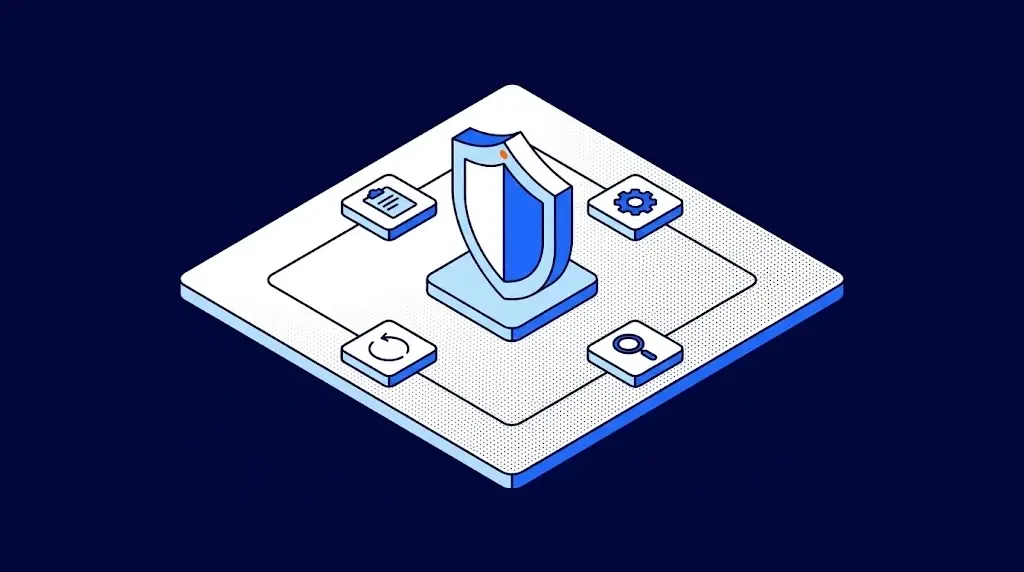
Protection is built in four layers that work together:
A vault isolated for your company
Each company has its own backup vault, separate from every other client's. Whatever happens at another organization doesn't touch your copies, and your copies don't live on the same network as your work devices.
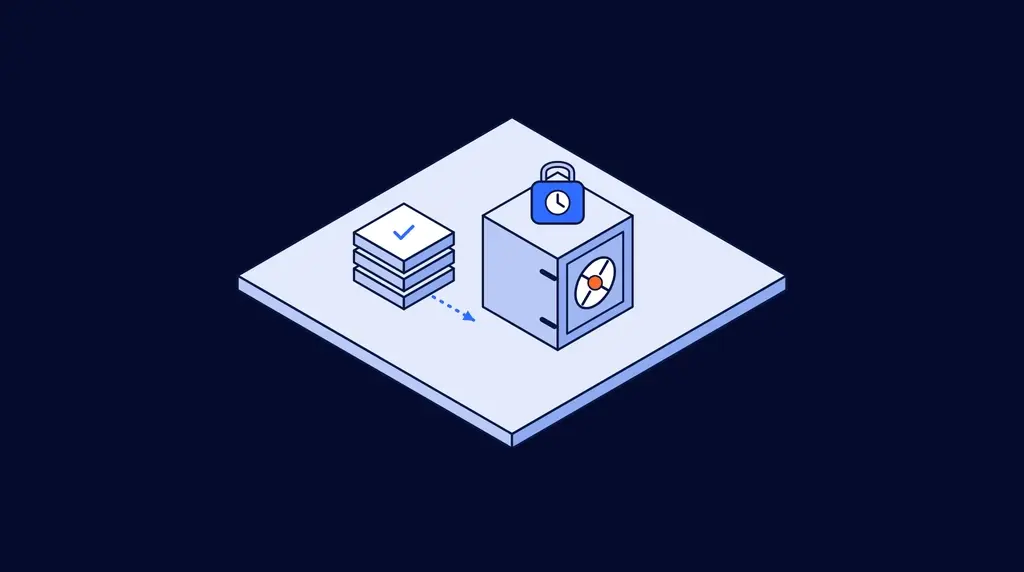
Locked backups that no one can delete
It works like the time lock on a bank vault: once it's closed, not even the branch manager can open it before the scheduled time. When each backup is set up, you choose the lock level with us:
| Level | What it means | When it fits |
|---|---|---|
| Full lock | No one can delete the backup or shorten how long it's kept, not even an administrator account. | Critical information: accounting, databases, client records. |
| Managed lock | Only an authorized person can lift the lock. | Information you sometimes need to clean up, with control over who does it. |
| No lock | The backup can be deleted like any other file. | Test or temporary data. |
Even if an attacker reaches the repository, what's locked can't be deleted.
Encryption detection
If TecnetProtect detects something starting to encrypt files the way ransomware does, it stops it. It's a second barrier, on top of the lock, so the attack doesn't take your copies with it.
Alerts and verification

Your IT team gets an alert if a backup of important data wasn't created. We also verify that copies can be restored, and every month you receive a report with their status and the checks we ran, so you don't find out on the day of an attack that a backup was incomplete.
How you get your backup ready before you need it
Recovery on the day of an attack is decided weeks earlier, when you set up your backup plan. In the portal you configure it in a few steps and adjust it whenever your operation changes:
- What to protect. You choose the entire device, which creates an image of the whole disk; specific folders and files, which you select from a tree; SQL Server databases; Hyper-V virtual machines, or Microsoft 365. One plan can cover several devices.
- How long to keep it. You set the retention for your copies: 15 days, 30 days, a custom period or long-term history.
- When to back up. You see each plan’s actual schedule and the time of its next backup, without depending on someone keeping watch at night.
- What happens if a device is off. It doesn’t count as a failure: it’s marked as skipped, and its pending copy runs as soon as you turn it on.
Adding a new device takes minutes, with step-by-step instructions for Windows, macOS and Linux. So when it’s time to restore, you know exactly what you have backed up and since when.
What happens on the day of an attack: how you recover your information
Take as an example an accounting firm with 25 computers and Microsoft 365 that, in the middle of month-end close, discovers that half of its files have a strange extension and no one can open them. With TecnetProtect, recovery follows four steps:
- Isolate the affected devices. They're disconnected from the network so encryption can't spread. Locked backups stay out of reach.
- Choose a clean copy. In the portal you see what's inside each backup before restoring, so you pick one from before the attack and don't restore the problem along with the files.
- Restore only what you need. You can bring back a folder, a mailbox or an entire device, to the original device or to a new one if the original no longer works. The firm starts with the month-end folder and continues with the rest.
- Get back to work. Recovery time is agreed in the contract based on how critical each workload is, so you know in advance how long it would take you to get back.
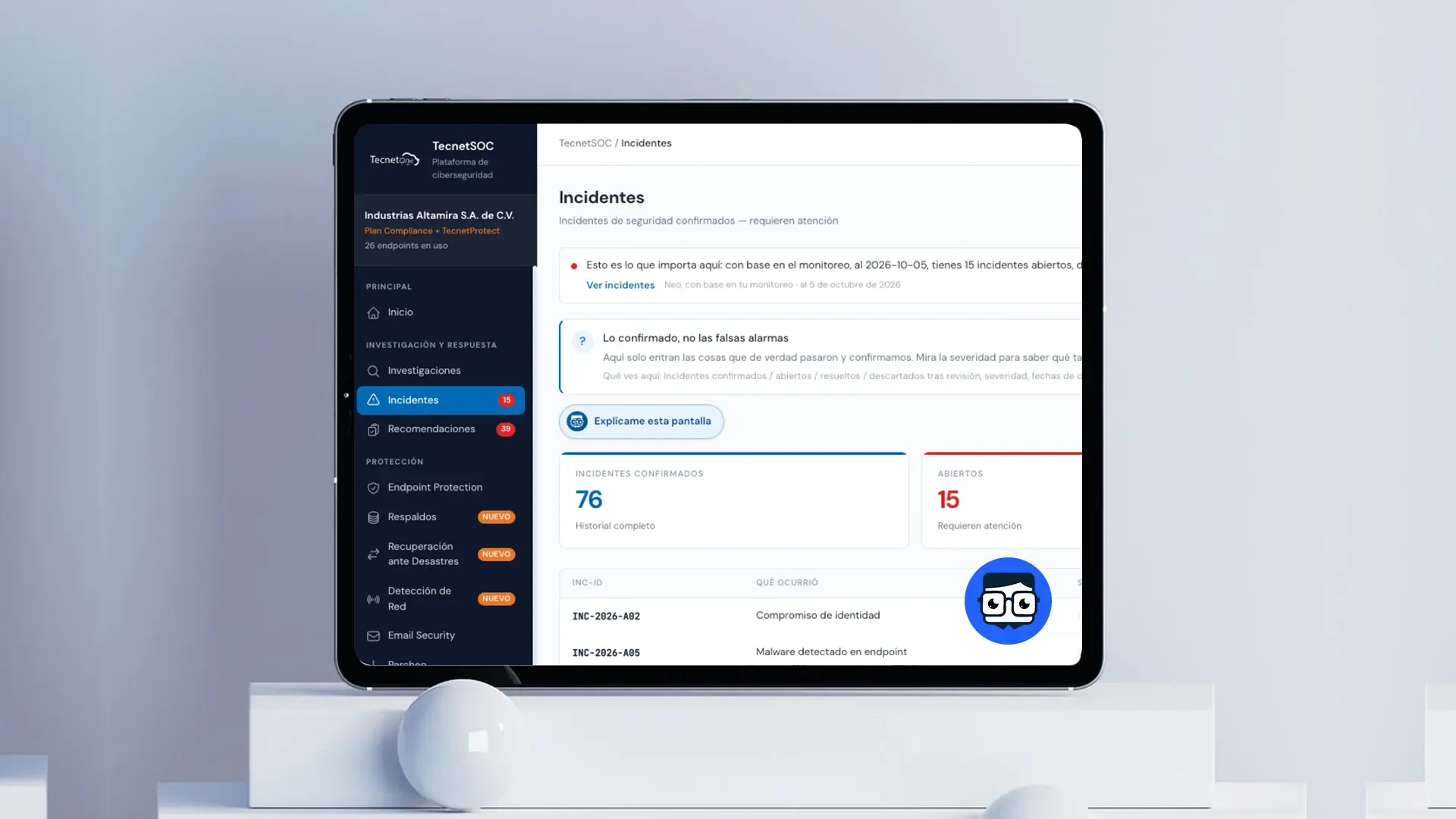
In the portal you have Neo, TecnetProtect's AI agent. You ask it which devices you have backed up, what failed and why, and it answers with your data and the source in view. It can also run a backup when you ask, always with your administrator's confirmation, and it puts together the executive summary to explain to leadership what happened and how it was resolved.

What each TecnetProtect plan includes
All three plans include immutable backups, 24/7 monitoring, TecnetOne support by severity and 1 TB of storage per company:
| Plan | What it backs up | Price |
|---|---|---|
| Email and files from Microsoft 365 or Google Workspace, up to 6 times a day | 4 USD per user per month | |
| Server | Physical or virtual servers, SQL, Oracle, SAP, HANA and Exchange | 13 USD per device per month, starting with one server |
| Workstation | Computers and workstations | 6 USD per device per month, 5-device minimum |
To get started, you just download and install the agent on each device you want to protect, with no support ticket. If you need more space, additional storage is quoted per TB. Each plan is detailed on the TecnetProtect cloud backup page.
At TecnetOne we don't just sell you a backup license: we integrate it, monitor it and run it with you, with 24/7 support across LATAM, the US and Europe, and ISO 27001 certified processes. So on the day someone tries to encrypt your information, your company has somewhere to recover it from.

Frequently asked questions about TecnetProtect and ransomware
It means it can’t be changed or deleted during the retention period you set, not even with an administrator account. In TecnetProtect it’s the full lock.
No. Backup lets you recover your information if something fails; endpoint protection works to keep that from happening. They complement each other. If you need it, see our managed endpoint protection.
You set the frequency in each backup plan: daily, weekly or monthly. For email, the Email plan allows several copies in the same day, so a mistake made in the morning can be fixed with the midday copy.
Yes. The portal shows the job history for the last 30 days, the progress of running backups and diagnostics for the ones that failed.
No. If the attacker copied data before encrypting it, backup brings your operation back to normal, but it doesn’t prevent the leak.

Levi is passionate about finance and technology, with a strong background in Financial Coordination. However, her true passion and curiosity have led her to explore the fascinating field of cybersecurity and Microsoft innovations. Combining her financial skills with a deep interest in data and systems protection, she has found in blogging a way to share her knowledge and help others understand the importance of staying secure in the digital world.